The ultimate HDR workflow master bundle. Create custom environment maps from heavy scenes, then instantly organize, manage, and batch-preview all your HDRI assets for lightning-fast Daz Studio renders.
- V3D HDR Manager
Updated 2023-04-05 - Fixed an issue where the script failed if canceled in a certain part of the preprocess progress. Added a procedure that if the user does not ask for a Daz Studio Preview, the file analysis is not processed. Please see .pdf included in product for more information on updates.
Stop wasting time trying to find the perfect environment lighting for your scene by desperately browsing your various products or categories, or trying one by one the eventual HDRI images that you downloaded on the internet or that you created. With V3D HDR Manager, you will find in the best environment map for your scene in the blink of an eye, and much more!
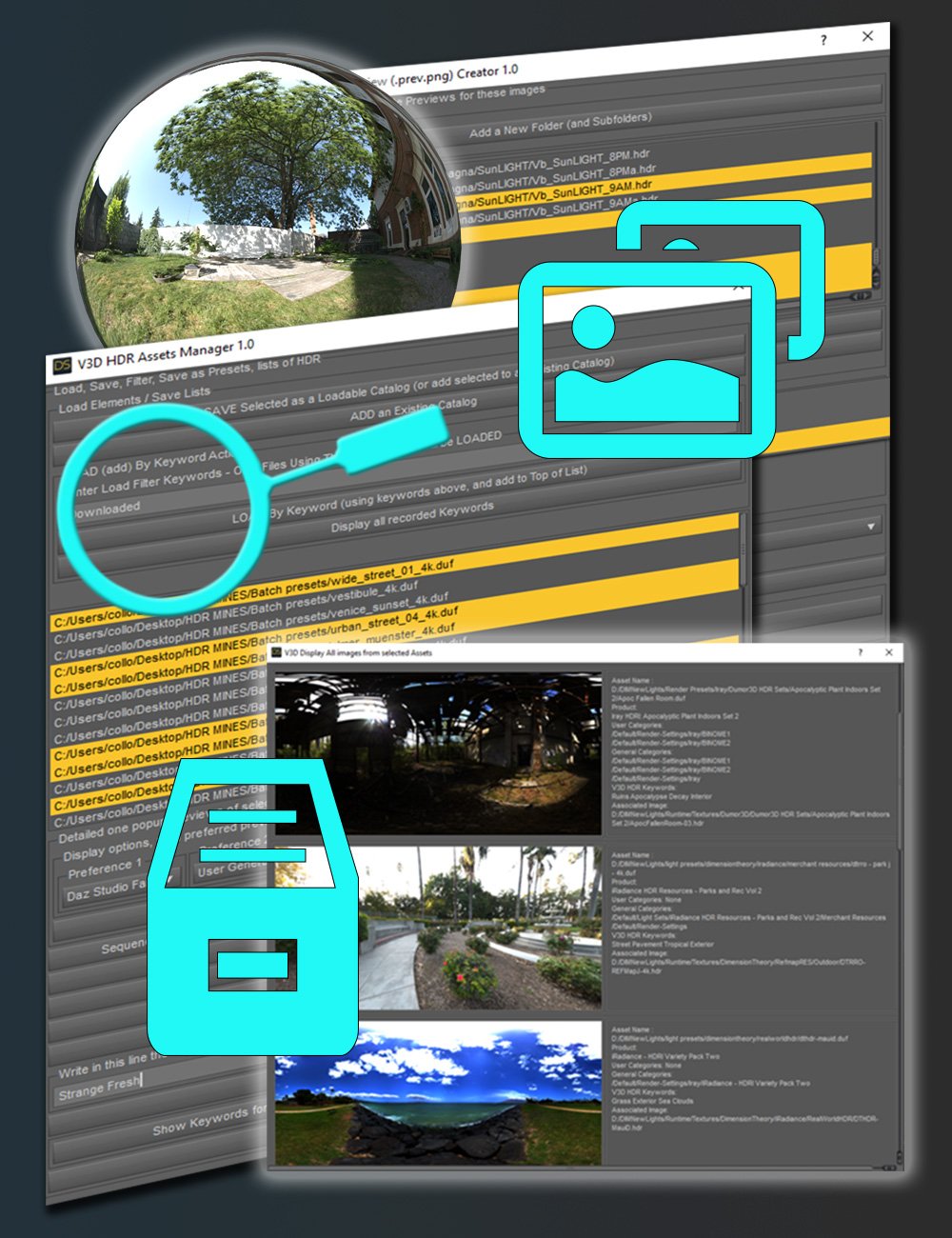
For all your HDRI images (.hdr or .exr) or all your HDRI assets (Environment Render Settings Presets), you can now create catalogs, load catalogs, create keywords, load by keywords, preview your HDRI images (the HDRI images on your computer or the HDRI images called by you selected assets) those previews being available either by sequence or in a single window for you whole selection. You can also apply assets directly to your scene, apply HDRI images directly as your Environment Map, copy or move files to reorganize them, batch save your HDRI images as render presets, efficiently preview several files together, etc, etc.
The two main scripts of V3D HDR Manager consist in one script dedicated to HDRI images and one script dedicated to assets (Environment Render-Settings Presets).
Concerning the script acting on images, the script can load in a list all .hdr or .exr images it finds in a given folder and its subfolders, and will display them in a list. Via this list, you can then act on one or several images at once. For instance you can add the ones you want to an existing catalog or to a catalog you'll create. And if you prefer to work another way to sort your images, you can assign to the selected images as many keywords as you want. Of course you can do both. Once done, you'll be able at any time to load a catalog of HDRI images in your interface, or to load your HDRI images by keywords. Of course you can load several catalogs if you want to, or use several keywords. This will make your search more efficient than ever.
Catalogs can be placed wherever you want on your computer, named exactly the way you want, and are super easy to edit if you made a mistake. Furthermore you can create backups for your keyword files (also easy to edit). You forgot your keywords? No problem, the script can display for you all the keywords you recorded so far, so that you can simply copy and paste the ones you want in the filter line to enter the "load by keyword". Preview your files when you want, and when you think you made your choice, in one click you can apply the HDRI file as the new Environment Map in your scene, save those hdri images as Render Settings Presets or, for the script working on assets, apply your render setting asset, without leaving the interface.
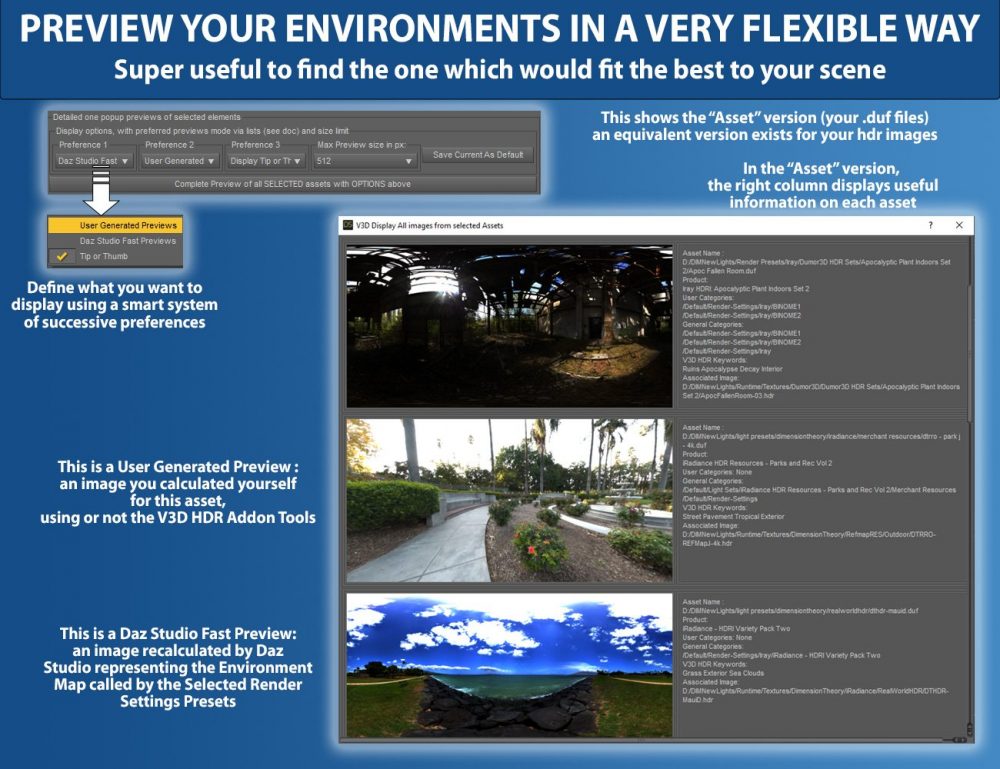
Concerning the script working on assets (.duf files), the assets initially displayed in the interface list will be the ones selected in your Content Library and your Smart Content Files Pane. The same way as you can do it for images, for those assets you can: add the assets you selected in the list to existing or new catalogs, add keywords, load assets in the interface by catalogs or load by keywords, preview all the files selected in the list (via their HDRI maps, or their previews, or via their tips or thumbs, it's up to you) in a single window also containing essential assets information (product, category, keywords), or as a sequence of images, apply your asset to the scene, etc.
In order to know if some images or assets deserve to be placed in a specific catalog, or to decide what keywords you could add for them, you can preview them in a popup window, either all in a single window, or in a sequential view through consecutive popups. You decide exactly what you preview by a system of preferences: it can be a Daz Studio Generated preview image (of the HDRI image or of the HDRI "extracted" from the render settings preset), a user Generated Preview image (image with a .prev.png extension, that you can create manually or via the V3D HDR Addon Tools), and for an asset it can also be the tip image.
The script acting on assets can be used on any asset you would have and is basically not limited to the render settings presets. The only limitation if you want to use it on other types of assets is that when you want to display previews of these assets, you may not be able to use all the options possible.
With V3D HDR Manager, it is very easy to use, and perfectly documented. In order to optimize your workflow, a menu and toolbar installer is included.
Be organized and efficient as never to choose your HDRI images or your Environment Lighting (or other assets) with V3D HDR Manager.
V3D HDR Manager: (.DSE)
V3DHDR Manager 01 Install
V3DHDR Manager 02 Open Documentation
V3DHDR Manager 03 For Images
V3DHDR Manager 04 For Assets
Download via QtyFiles Service - V3D HDR Creator
Updated 2023-04-04 - The “exr” script was updated for clarity. The “png xEV” script resolved an issue when the “Render All Compatible Cameras” option was checked. Please see the included .pdf for a full explanation of updates.
Have you ever struggled to set up your figures in a complex scene? Have you ever been despaired when your scene takes hours to render because it is too heavy for your computer? Or do you want to feel super comfortable and not worry about the weight of your 3D surrounding environment when you play with your main characters in the scene? Or maybe you just want to speed up your renders? Don't worry anymore: V3D HDR Creator is made for you!
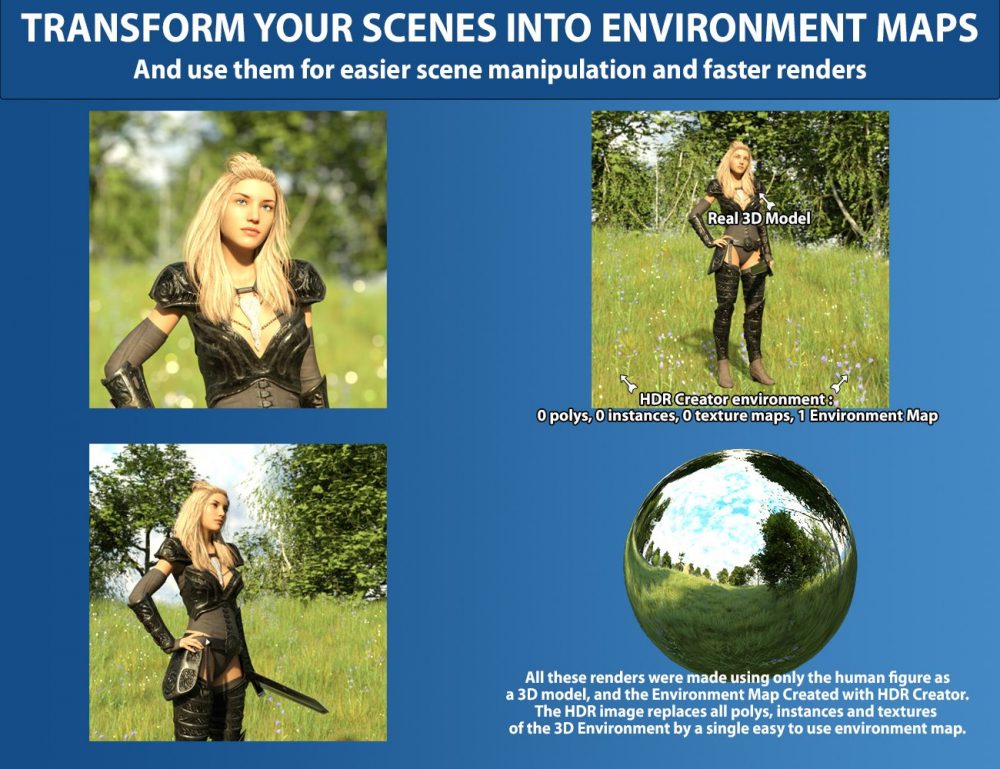
Simply create HDR images of your 3D environments and apply them in any scene in the blink of an eye! V3D HDR Creator will optimize this workflow for you, allowing you to reach your ultimate goal: make a great render super easily!
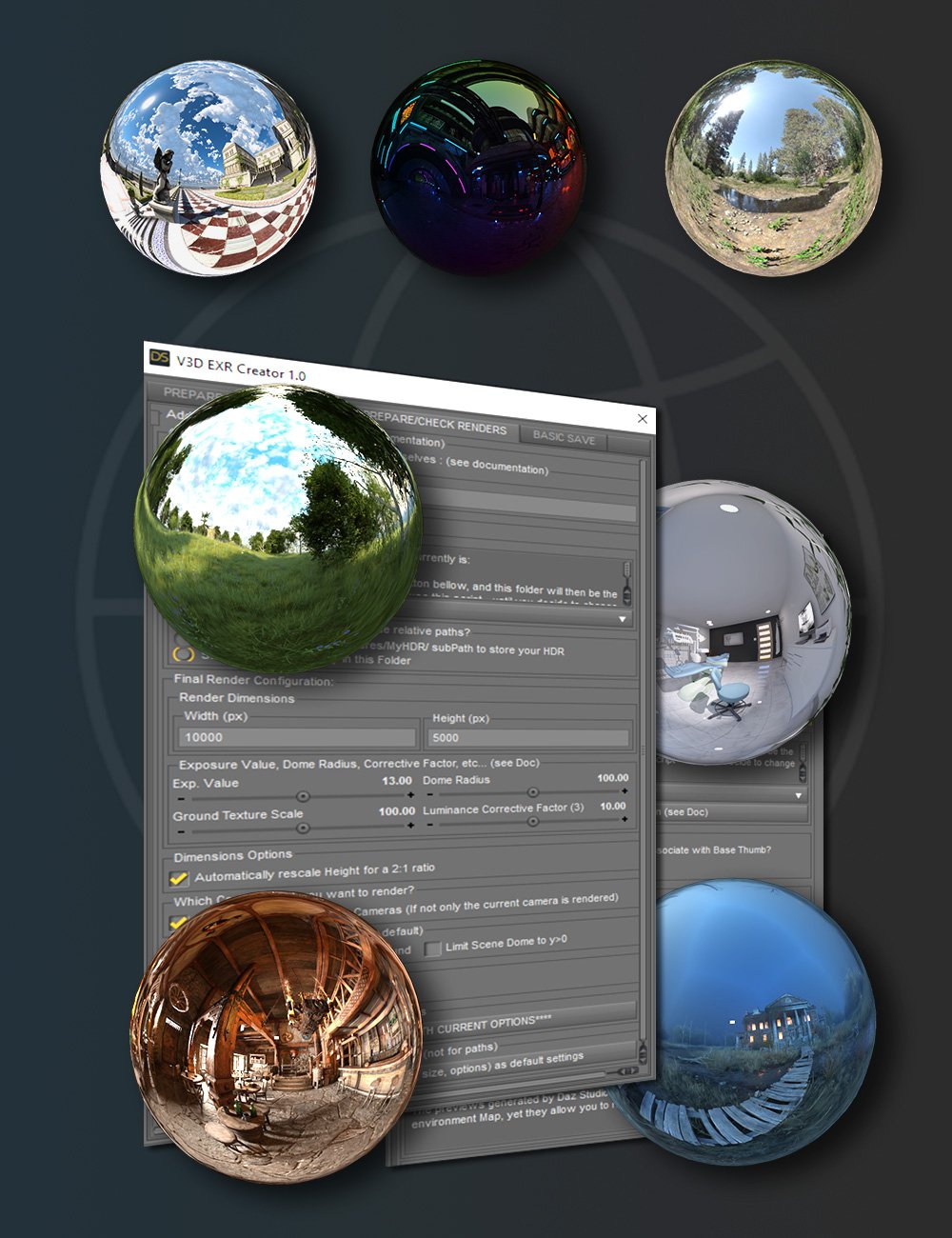
V3D HDR Creator is a set of scripts that will allow you to add 360-degree cameras in a single click either at the horizontal center of your scene or at the perspective view location. Two scripts are then available to process your renders using a single camera or all the cameras created:
EXR Creator processes the renders of HDR images that can be used directly as environment maps. Any image rendered with this script can be at any time saved from within the script in a new basic render settings preset, which can be called directly from your Content Library. Loading this basic render-settings preset from your content will load this HDR exr image as the new environment map for your scene.
Png xEV Creator proposes an alternative way to create your HDRI Environment Maps. It allows you to enter a set of exposure values and to batch render a set of 360-degree png images for all these exposure values. Those images can then be recombined in an external software, such as Photoshop, in order to create an HDR image that you can load as your new environment map. Png xEV Creator can be used in any scene and is especially recommended for scenes where light effects (fog, haze, bloom, etc.) are an important part of your scene mood or scene lightning.
Both those scripts keep track of your renders, allowing you to pick up in your history list the one you want, either in order to preview the image, or to instantaneously create a render settings preset out of your image, or even to open their folder in your explorer to directly access the images. This way, you will not make a render twice only because you forgot where you stored it! To be more efficient, a script can clean your history lists by removing orphans and reducing the number of elements in the list to the value you want.
In those two main scripts, tons of options are available to speed up your workflow, and even better, all these options can be defined as your preferences for your next sessions so you never waste your time. Even if extremely easy to use, everything is perfectly documented and in order to go even faster, a dedicated menu can be installed whenever you want, complemented if you want to via an easily removable/re-installable toolbar.
So stop being afraid of using some of your great content just because it might be too heavy! Stop being worried because a complex scene prevents you from working easily with your main figures! Use V3D HDR Creator and turn millions of polys and hundreds of texture maps into a single environment map!
V3D HDR Creator: (.DSE)
V3DHDRC 01 Install
V3DHDRC 02 Open Documentation
V3DHDRC 03 Create or Add Cameras
V3DHDRC 04 exr Creator
V3DHDRC 05 png xEV Creator
V3DHDRC 06 Clean Data Files
Download via QtyFiles Service - V3D HDR Add-On Tools
Updated 2023-04-05 - Added a link to the forum and a button to add a spherical camera the “image” version of the script. Modified a comment to change interface behavior when processing huge amount of tiles. Modified so that users can see the bottom button allowing them to save preferences. Please see .pdf included in product for full update notes.
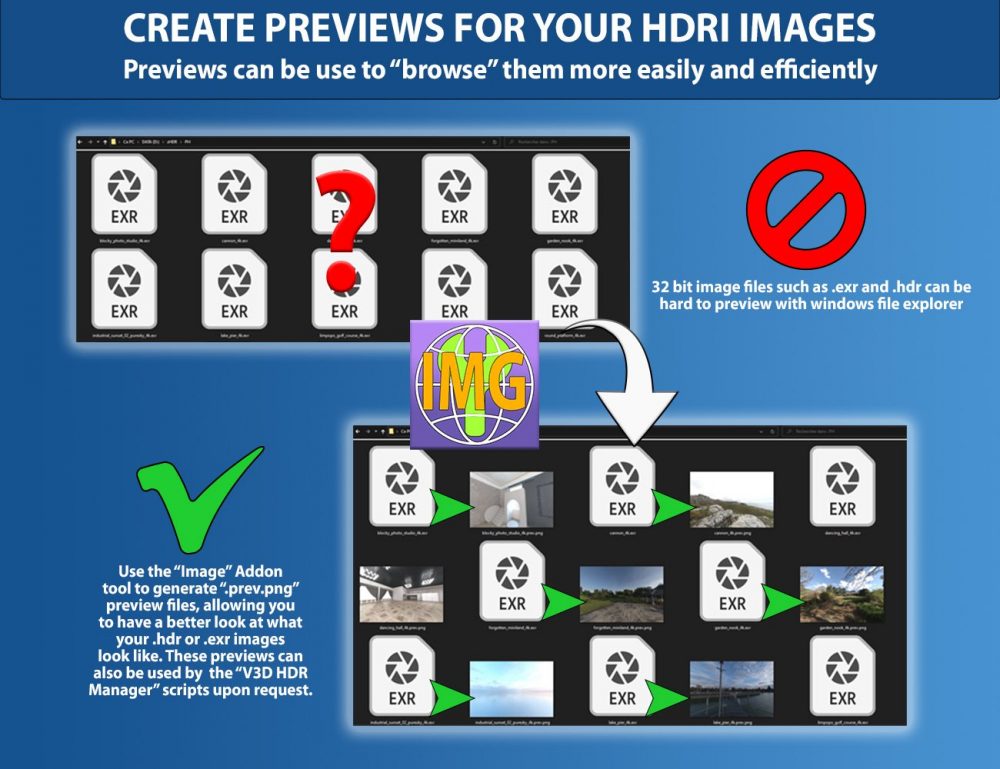
V3D HDR Add-On Tools is the perfect add-on for the HDR Creator and HDR Manager products, but it can do so much more! With HDR Add-On Tools, you can create very rapidly and efficiently new thumbs for your assets, as well as custom tips and custom image files called Previews. You can also create Previews for any hdr or exr image file (file formats generally used for environment images) existing on your computer: the ones you downloaded from the internet HDRI sites, the ones you created yourself, the ones you bought in Daz Store through HDRI sets, etc, etc.
The 2 main scripts consist in one script dedicated to images and one script dedicated to assets.
Concerning the script acting on images, the script can load in a list all .hdr or .exr images it finds in a given folder and its subfolders. You can then act on one or several images via a list, either by previewing the images in a small popup before your decide to create previews for them or not, or by creating these previews.
The previous are .prev.png files allowing you to see what your HDRI files look like in your file explorer (which is not easy in general), or what your assets (.duf files) look like in "bigger images", but they can also be used as an additional option in the V3DHDR Manager.
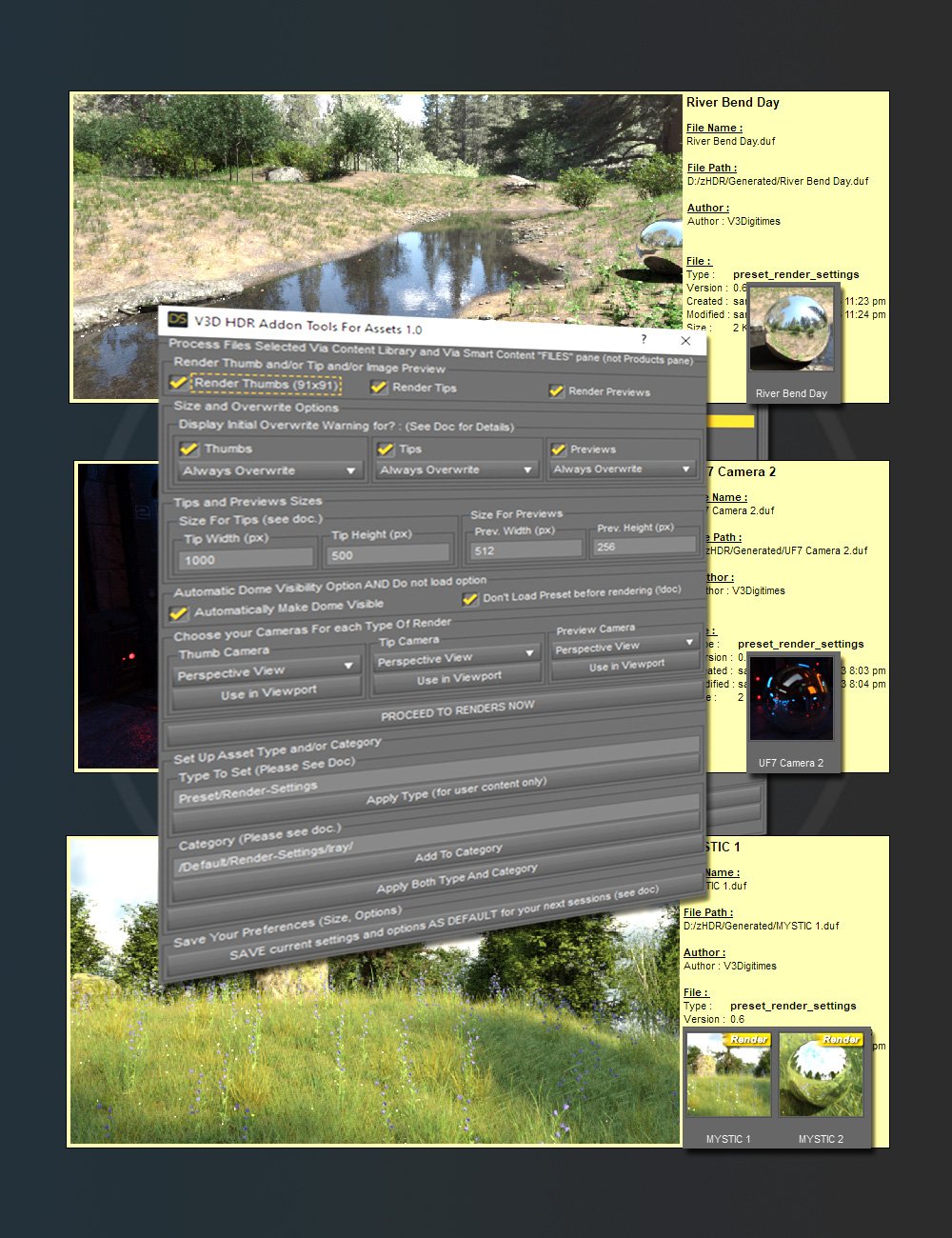
Concerning the script acting on assets, it was mainly developed for environment presets (render setting presets changing your environment) and is made to easily render thumb and/or tips and/or previews easily and efficiently. Thumbs, tips and previews all can be rendered with the exact cameras you want, and the tips and previews can be rendered with the exact dimensions you want. It acts on all the assets selected via your Content Library and your Smart Content Files Pane.
Clear overwrite strategies for each type of render allow you to define globally what you want to do in case of a risk of overwrite, so you make your choice once for all in each render session. This way, you will have a maximum of one global overwrite per render session when you batch render all your selected assets (and you will not suffer the horrible one overwrite warning per image any longer). You can also batch assign the type of an asset or add category for your selected assets.
Initially created for render setting assets, and especially the ones applying environment maps, this script for assets can also be used to batch render the thumbs, tips, and previews for many other types of content. In practice, it will work perfectly to batch render content for which applying the asset will replace the previously applied asset (such as most poses, shaders, and materials for instance). For other types of assets, an option is included so that the selected asset is not loaded in the scene before you render. This allows you to render a thumb, a custom tip, and/or a custom preview for a given asset, whatever its type, even if it is not supposed to be loaded just before the renders launch.
Everything was conceived for a super-efficient and easy workflow. At any time, you can set up your current options as the default options for the next sessions, so you never waste time with the configuration of your renders. Even if it is extremely intuitive and easy to use, the whole set is fully documented. Two other utilities allow you to install a menu and a removable toolbar and to launch the documentation from within the product.
Get the exact thumb, tips, previews, types, and categories you want for your assets and create relevant previews for your HDRIs with V3D HDR Add-On Tools.
V3D HDR Add-On Tools: (.DSE)
V3DHDR Addon Tools 01 Install
V3DHDR Addon Tools 02 Open Documentation
V3DHDR Addon Tools 03 For Images
V3DHDR Addon Tools 04 For Assets
Download via QtyFiles Service